Recently I had the unfortunate experience where a patch upgrade went bad. The upgrade itself was not to blame but rather the uninstallation of the 13 patches I had applied starting with BOE 4.0 SP1. This system has been running for over 1.5 years and each patch applied was to resolve a known issue during beta and ramp-up. I was uninstalling the old patches to remove the 55 GB of uninstall data cache that had accumulated over the past 13 patch installs. This was a recommendation directly from SAP support as a means to free up the 55 GB of storage. However there was apparently an issue with one of the patch uninstall scripts that resulted in the removal of several key binaries from the install folders and sqlight database that tracks the binaries. All attempts to reinstall the patches and software where futile at this point. The system was unrecoverable and the only way to resolve the problem, while freeing up the 55 GB of space, was to perform a clean install of both the operating system and BOE 4.0 software. While this might sound like I just prescribed a computer lobotomy, rest assured that the process is not only straight forward but safe when applied correctly. The following information will outline the steps I followed to recover my system when only a rebuild will suffice.
- The first step and most important step is to backup the information stores and configuration files of BOE 4.0. There are three main information stores on BOE 4.0 that work together to form the repositories of BOE. The first store in the CMS system database. This is the database that the CMS service manages and it contains all the metadata for the reports in the system. Ask your DBA to create a backup of the database before proceeding “just in case”. The second and third information store consists of the Input File Repository and Output File repository. They can be found under:
- \SAP BusinessObjects Enterprise XI 4.0\FileStore\Input
- \SAP BusinessObjects Enterprise XI 4.0\FileStore\Output
These directories in larger clustered environment might already be placed on a network share therefore it is vital that you know and understand your configuration before proceeding. If the files are being stored in their default location on the server you are about to reformat, please be sure to copy these directories to a safe location. If they already exists on a network share, don’t worry as they will not be disturbed by the complete rebuild of the server. The final items to copy to a safe place included any custom .properties files you configured for Tomcat. There might be other Tomcat configuration that you need to backup as well. Please consult with your installation and configuration documentation before deleting any Tomcat files. If all else fails, ask the server admins to create a full system back that can be restored incrementally and to verify that a full system backup (before the issues occurred exists).
The remaining steps will guide you through the rest of the process.
- Make note of some key information in the CMC and server OS. These items are key to the setup of the new BOE 4.0 instance on the same server.
- The exact name of the SIA node associated with the server. In most cases this is the host name of the server but BOE 4.0 asks you to enter your own name now, so it might not be the same as the host. You can find this under Server -> Nodes in the CMC. In my case the node was named “DFTBOE40” (See Image: Link )
- The password associated with the Administrator account.
- The cluster key password.
- The boot drive letter and other drive letters. (C:\ and D:\ for example)
- The installation directory of BOE 4.0 (Full Path)
- All ODBC DNS, Oracle Clients configurations etc…
- Reformat all the partitions and reinstall the Operating system. Most likely your server administrator will help you with this but there are a few keys items to note. Make sure the new server has the same host name and same drive letters as the previous OS.
- Install all database clients and reconfigure the OS level connection details. (ODBC, tnsnames.ora, etc..)
- Once the OS is fully restored it is time to start the BOE 4.0 installation. Make sure to install the software to the same directory and drive. The servers in the CMS repository can contain path references to the old server install path. Because we are recovering the server from its previous state we want to keep the same install path to ensure seamless recovery.
- When asked for the new SIA node uses a temporary name and do not use the name you wrote down in step 2-a. This is important to the recovery as we need a temporary SIA and CMS.
- When asked for the CMS database and audit database use the existing databases. Do not create a new Database. Also make sure that you do not “reset the database” or you will lose all the configuration information and reports in the Database repository.
- At this point you can follow your normal installation steps.
- Once you have your system up and running using the temporary SIA and CMS you should logon and make sure all your users, groups, reports and universes show up in the CMC. You can now copy your input and output FRS directories back to the default location. If you are in a clustered environment using a UNC path for the FRS directories you can skip this step but note that you will not be able to view any reports until the FRS is restored.
- Using the CCM (Central Configuration Manager) you need to stop the SIA and change the CMS port and SIA port of your temporary node. The defaults should be CMS port 6400 and SIA port 6410. I changed mine to 7400 and 7410. With the ports reconfigured start the temporary SIA.
- This part gets a little tricky and the process is not clearly documented in the BOE 4.0 administrator’s guide. Pay close attention…
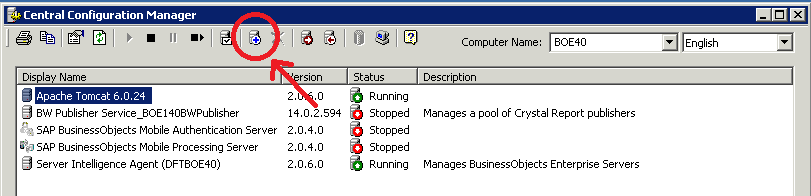
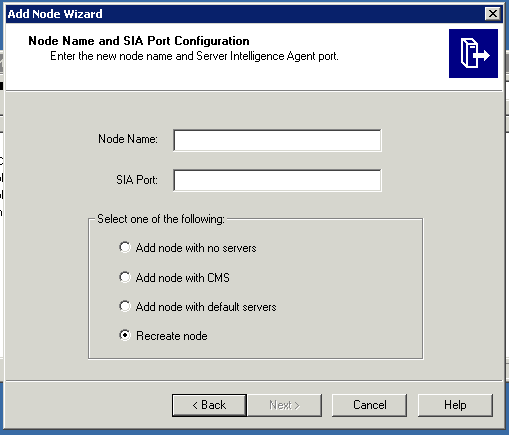
- Add a new node to your environment using the CCM. (See Image: Link ) When configuring the node specify your SIA node name from the previous environment. The port should be 6410 and the option should be set to “Recreate Node” (See Image: Link )
- Assuming that the recreation of the Node completes and the SIA starts with your original CMS service and other services you are ready to remove the temporary SIA and CMS. You can do this by stopping the temp SIA and then clicking the “X” delete button on the CCM.
- You can now login to the CMC and BI Launchpad to test all your old content. If you are experiencing issues that can not identified you can call support, employ a consultant or restore the last known good backup.
 SAP BI Blog